Setting up SSL on IBM i
This process will guide you through setting up the Digital Certificate Manager to enable your iSeries to interact as a client to other external servers requiring SSL connections, including CyberSource.
Step 1: Enter Digital Certificate Manager
#To begin, verify that the *ADMIN HTTP server job is running with the following command:
WRKSBSJOB SBS(QHTTPSVR)
If you don't see *ADMIN in the list, please run the following command to start it:
STRTCPSVR SERVER(*HTTP) HTTPSVR(*ADMIN)
After you've ensured that the *ADMIN server is running, open a web browser (Internet Explorer is recommended), and go to http://YourIBMIPAddress:2001 - you should see a login page as seen below:
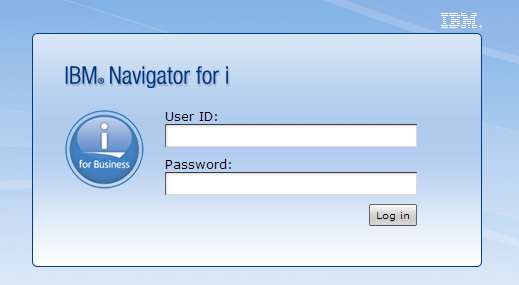
Enter your IBM i username and password, and click "Log in". You should see a page split into two sections - a menu on the left, and a larger content area on the right that looks like the below image:
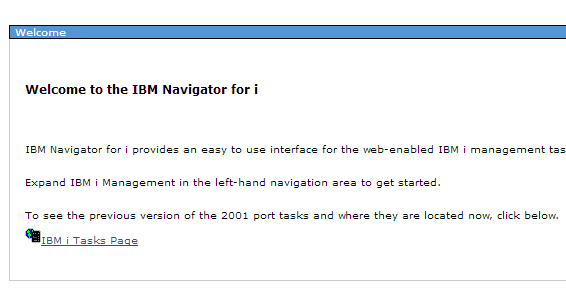
Click the "IBM i Tasks Page" link.
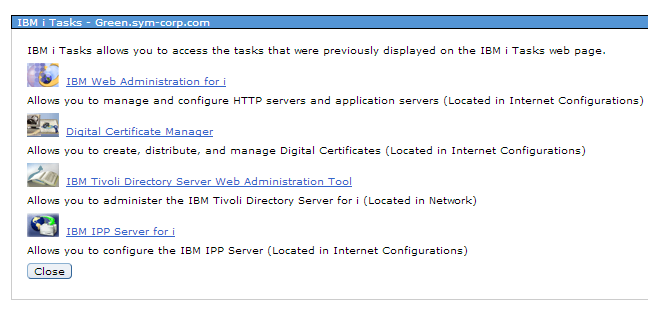
Now, click the "Digital Certificate Manager" link. You may be prompted to log in again - if you are, enter your IBM i username and password. It is recommended to log into the Digital Certificate Manager on a profile with elevated authority.
Step 2: Create New Certificate Store
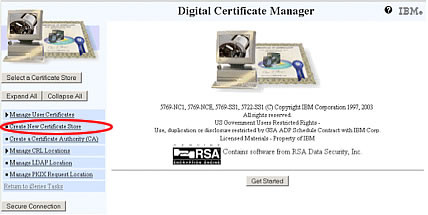
#Select the link "Create New Certificate Store"
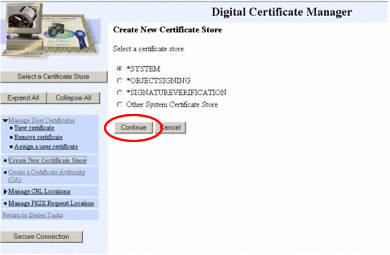
Ensure *SYSTEM is selected, and then select the "Continue" button. *Note: if SYSTEM does not appear, this process has likely already been completed on your IBM i.
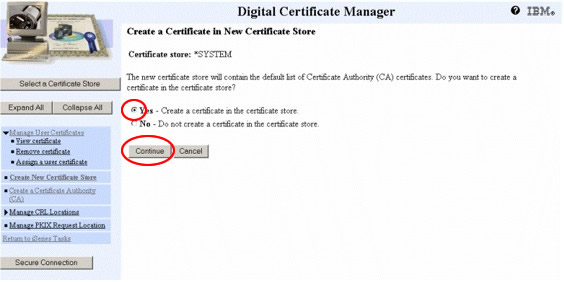
Step 3: Select Yes
#Select "Yes", and then press the "Continue" button.
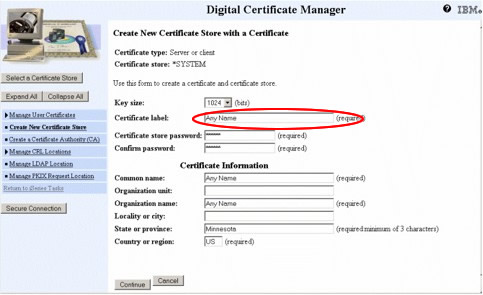
Step 4: Finish Entering Data
#Put anything you want in the "Certificate label" field. Then, specify a "Password", and record it for future reference. Fill out the remaining fields, populating them with whatever data is necessary, and then select the "Continue" button.
Step 5: Store Certificate Key
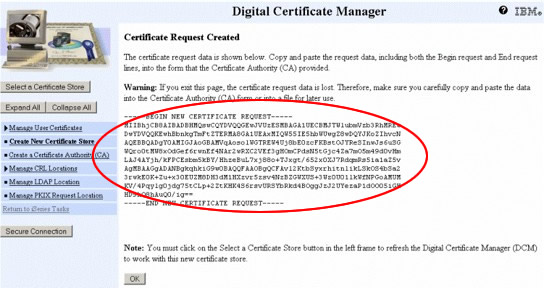
#Cut and paste the below certificate key into a text editor (like Notepad) and save it someplace secure. Select the "OK" button.
Step 6: Ensure Proper Configuration
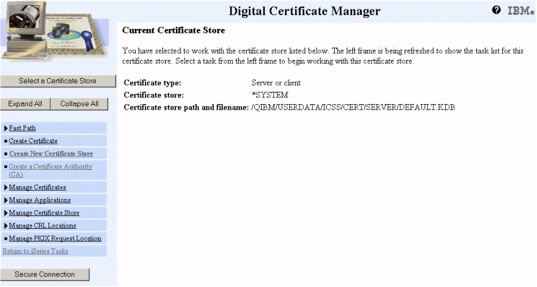
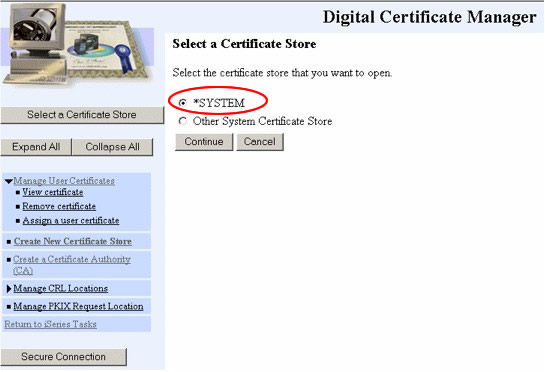
#Selecting the "Select a Certificate Store" button at the top of the left sidebar will place you at the below screen. Make sure *SYSTEM is selected, and select the "Continue" button.
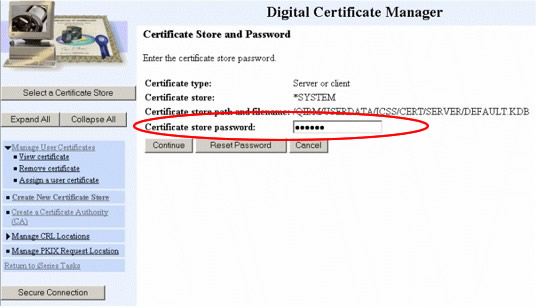
Enter the password you specified in Step 4, and select the Continue button. Note: If you ever forget the password, you can simply select "Reset Password" - you will be allowed to reset the password without knowing the previous password.
If your page looks like below, you have successfully set up SSL on your IBM i!