

Set Up SSL/TLS for TELNET
Your IBM i can be configured to allow you to connect via TELNET using TLS/SSL, which offers a more securable connection. This guide demonstrates how to create a self-signed certificate to use to authenticate the TELNET connections, and how to assign it to the TELNET service.
Accessing DCM
#To begin, verify that the *ADMIN HTTP server job is running with the following command:
WRKSBSJOB SBS(QHTTPSVR)
If you don't see *ADMIN in the list, please run the following command to start it:
STRTCPSVR SERVER(*HTTP) HTTPSVR(*ADMIN)
After you've ensured that the *ADMIN server is running, open a web browser, and go to http://YourIBMIPAddress:2006/dcm/
If you are connected using our SSL VPN client, the IP address you would reference is the local IP address of your Kato Spaces system. If you are connecting from an IP address that is included in an allowlist rule in the firewall, use the public IP address of your system.
You should see a login page as seen below:
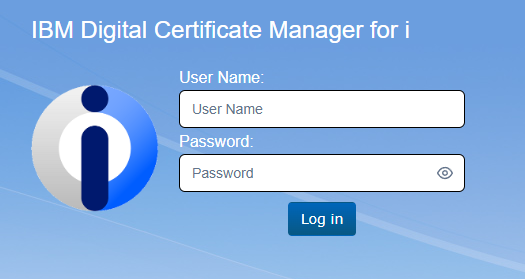
You will want to log in to DCM using a profile with elevated permissions.
Open the *SYSTEM certificate store by first clicking on the "Open Certificate Store" link under the Actions header, then select *SYSTEM:
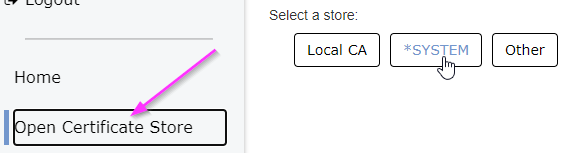
Enter your *SYSTEM store password when prompted and click "open".
Creating the Self-Signed Certificate
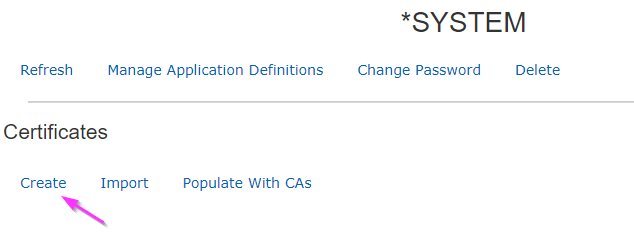
#From the main page of the *SYSTEM certificate store, click "Create" to start the wizard to create a new Certificate Authority:
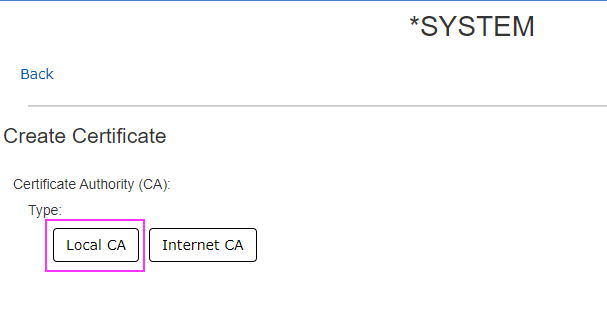
Select "Local CA":
Fill in the required fields. For "Common Name", which expects a URL, you can use your IP address as well. Click "Create" at the bottom of the page to continue.
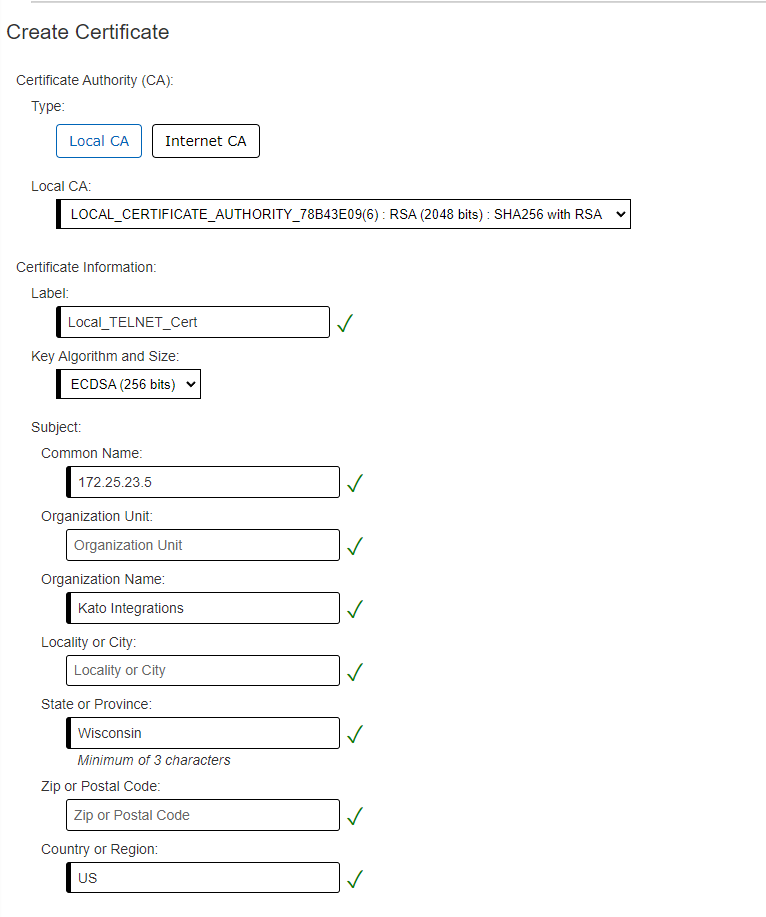
Assigning the Self-Signed Certificate
#You should now be at the main page for the *SYSTEM store and see your new certificate in the list of Server/Client certificates in DCM:
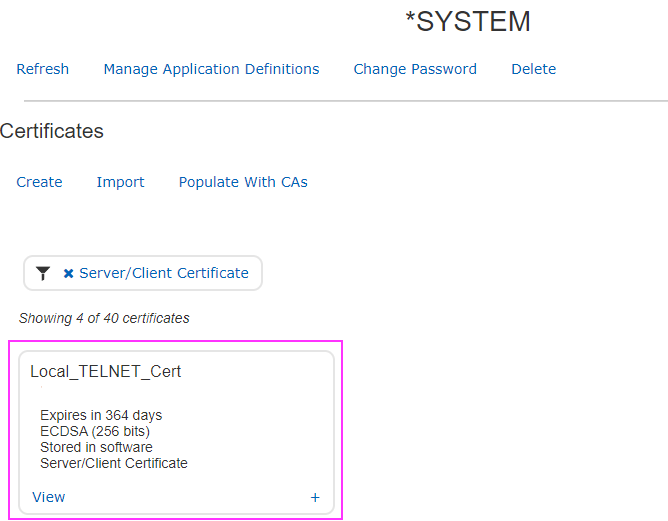
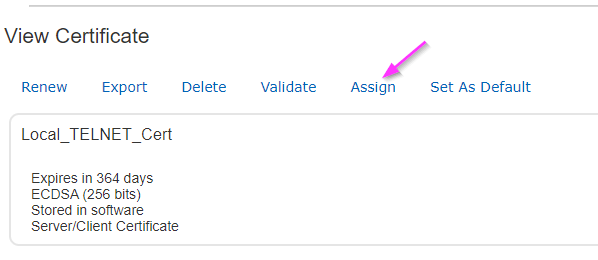
Click "View" on the certificate card to pull up the certificate page, then click "Assign" from the top navigation to go to the list of SSL applications:
Scroll down the list until you find the application named Q_QTV_TELNET_SERVER, the IBM i TCP/IP Telnet Server. There will be two similar listings, be sure you are selecting the SERVER listing, not the CLIENT listing:

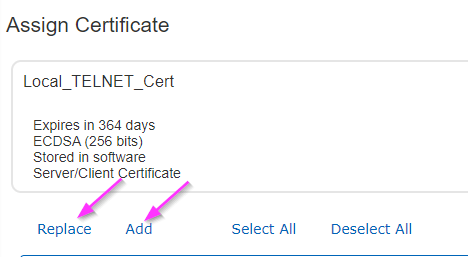
Check the box for the server, then click "Replace" (if it is available) or "Add" at the top:
You should see a success message:

Configuring Your Client
#Access Client Solutions needs to be configured to attempt to connect using TLS settings. If you are not using Access Client Solutions, you'll need to make similar changes but your user interface will be different.
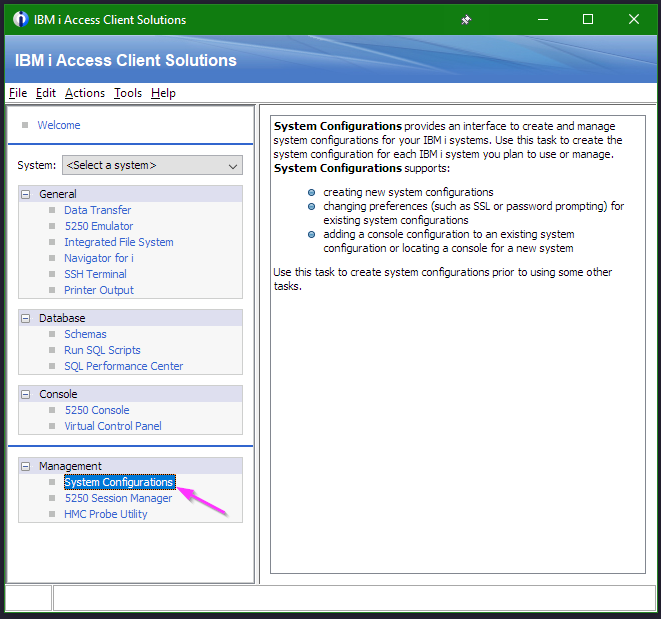
Click on "System Configurations":
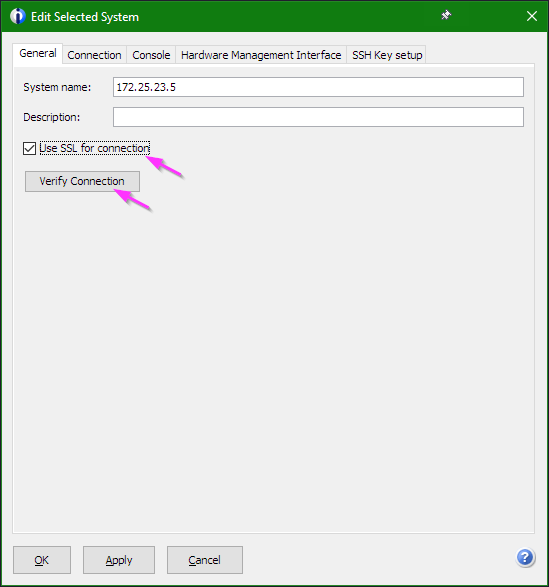
Select your system and click "Edit"

Check the box for "Use SSL for connection", then click "Verify Connection":
While verifying the connection, it will prompt you to accept the new certificate we assigned to the connection:
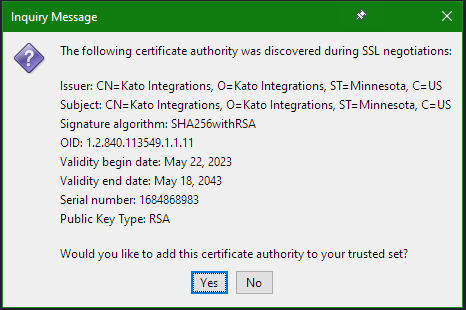
Click "Yes" to accept the certificate. The connection verification will complete. Click "Apply" in the system configuration menu to finish configuration