

Accessing DCM and the *SYSTEM Store
Working with web services frequently involves the management of SSL certificates. For this, IBM has provided their Digital Certificate Manager (DCM), which is a web interface to perform many tasks related to SSL certificates. This is provided as part of the *ADMIN server running on your IBM i.
To begin, verify that the *ADMIN HTTP server job is running with the following command:
WRKSBSJOB SBS(QHTTPSVR)
If you don't see *ADMIN in the list, please run the following command to start it:
STRTCPSVR SERVER(*HTTP) HTTPSVR(*ADMIN)
After you've ensured that the *ADMIN server is running, open a web browser and go to http://YourIBMIPAddress:2001 - you should see a login page as seen below:
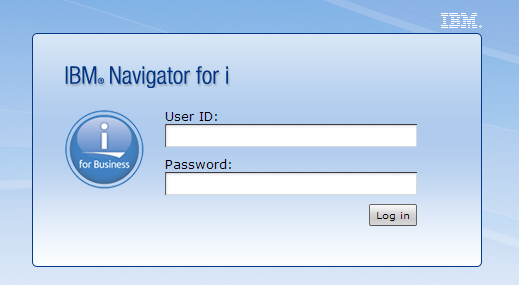
Enter your IBM i username and password, and click "Log in".
Note: It is recommended to log into the Digital Certificate Manager on a profile with elevated authority.
You should see a page split into two sections - a menu on the left, and a larger content area on the right that looks like the below image:
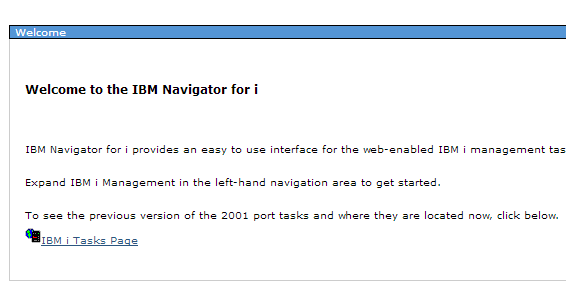
Note: If your screen does not look like the above, you may need to click the "Welcome" tab at the top.
Click the "IBM i Tasks Page" link.
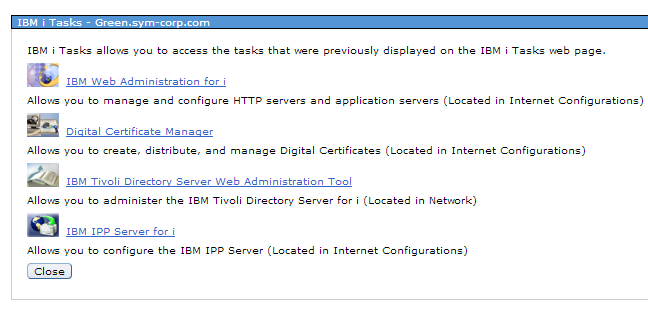
Now, click the "Digital Certificate Manager" link.
**Note: Depending on your OS version, you may instead have "http" and "https" links after "Digital Certificate Manager". Many customers do not have HTTPS properly set up for their ADMIN server which can cause issues when selecting "https", so we recommend selecting "http" unless you know your ADMIN HTTPS is configured correctly.
You may be prompted to log in again - if you are, enter your IBM i username and password.
Note: It is recommended to log into the Digital Certificate Manager on a profile with elevated authority.
After you are logged in, click on the "Select a Certificate Store" button in the far left of the page. Then, select the *SYSTEM store and press the "Continue" button. If you do not see *SYSTEM, you will need to go set up SSL on your IBM i.
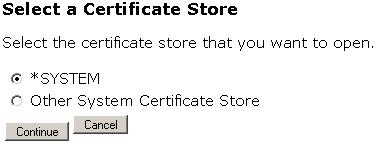
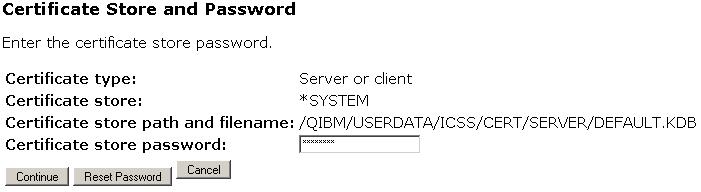
It will then prompt you for your *SYSTEM store password. Enter your *SYSTEM store password and select the "Continue" button.
*Note: If you do not remember the SYSTEM password, you can simply click "Reset Password" and you can then reset the password without knowing the previous password.
You should now be at a screen that looks like the following:
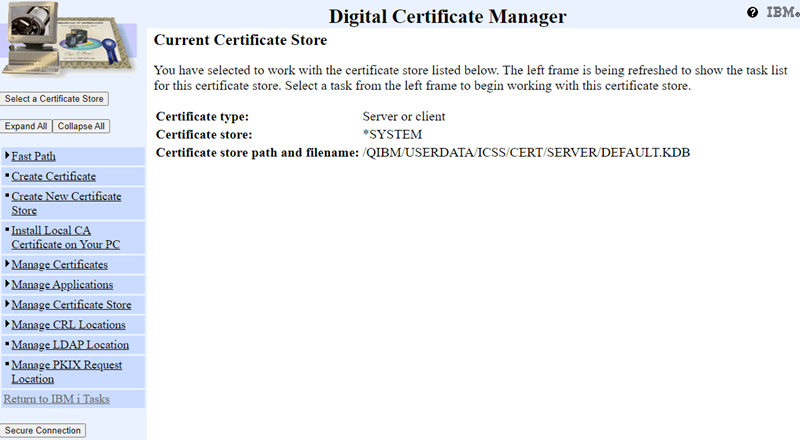
From here you can proceed with any Digital Certificate Manager tasks as needed using the menu on the left, including:
- Installing or removing SSL certificates or certificate authorities
- Creating, modifying, or deleting SSL Applications
- Creating a self-signed SSL certificate, or requesting a Certificate Signing Request (CSR)