

Configuring SSL Permissions
When calling a remote web service that uses SSL (i.e. the URL starts with https) RPG API Express is making use of the SSL related components of the IBM API's underneath the covers, and in turn those IBM API's are accessing system objects that are locked up fairly tight by default.
The most common scenario we come across is a developer will create a program that calls a remote web service that uses SSL. Everything works fine for the developer during their testing, but when they have other people use the same program it throws errors with SSL permission issues (you can see errors in the job log of the user trying to run the program).
To rectify the issue you need to provide the *PUBLIC profile access to what are called the keyring SSL files. If you would rather not grant this to *PUBLIC, you can grant it to specific user profiles or a group profile instead; see Granting authority to specific profiles.
Granting authority with CHGAUT
#The quickest way is to run these three commands from a command line, using a profile with enough authority to change these objects (such as QSECOFR or a profile with *ALLOBJ special authority):
CHGAUT OBJ('/QIBM/UserData/ICSS/Cert/Server/DEFAULT.KDB') USER(*PUBLIC) DTAAUT(*R)
CHGAUT OBJ('/QIBM/UserData/ICSS/Cert/Server/DEFAULT.RDB') USER(*PUBLIC) DTAAUT(*R)
CHGAUT OBJ('/QIBM/UserData/ICSS/Cert/Server')             USER(*PUBLIC) DTAAUT(*RX)
The first two give *PUBLIC read access to the keyring files, and the third gives *PUBLIC read and execute access to the folder that contains them. If the first two commands fail because the files are not found, you probably don't have SSL setup on your IBM i.
Granting authority with WRKLNK
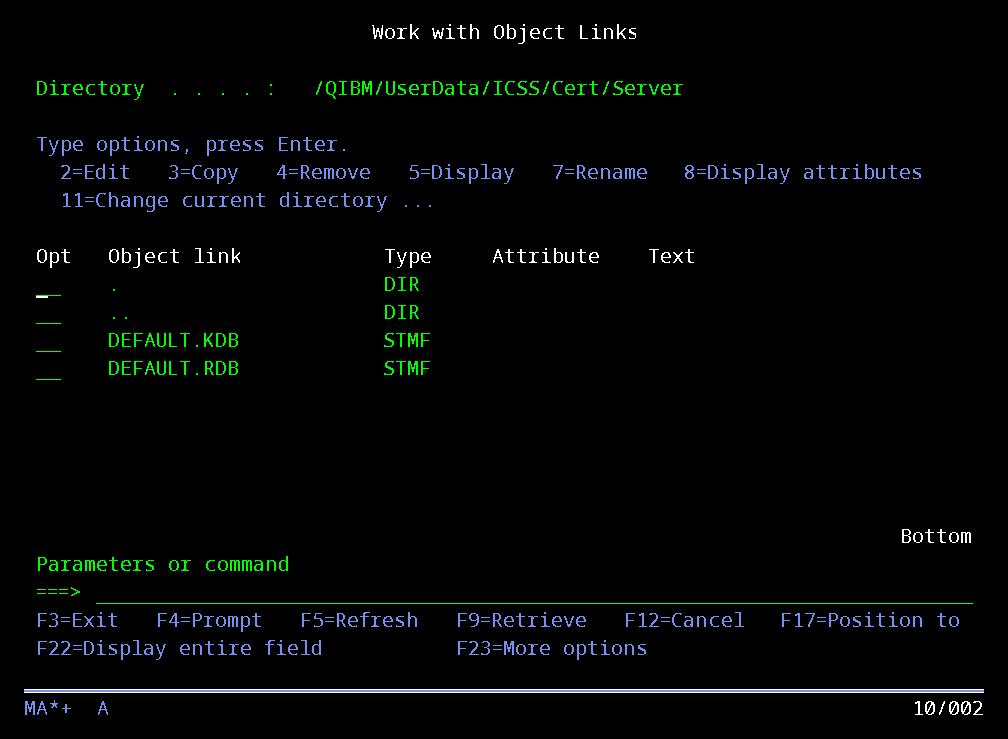
#If you prefer to make the same changes through the WRKLNK screens, you can locate your keyring files in the IFS by running the following command:
WRKLNK '/QIBM/UserData/ICSS/Cert/Server/*'
You should then see files DEFAULT.KDB and DEFAULT.RDB as shown in the below screen shot. If you don't see those files then you probably don't have SSL setup on your IBM i.
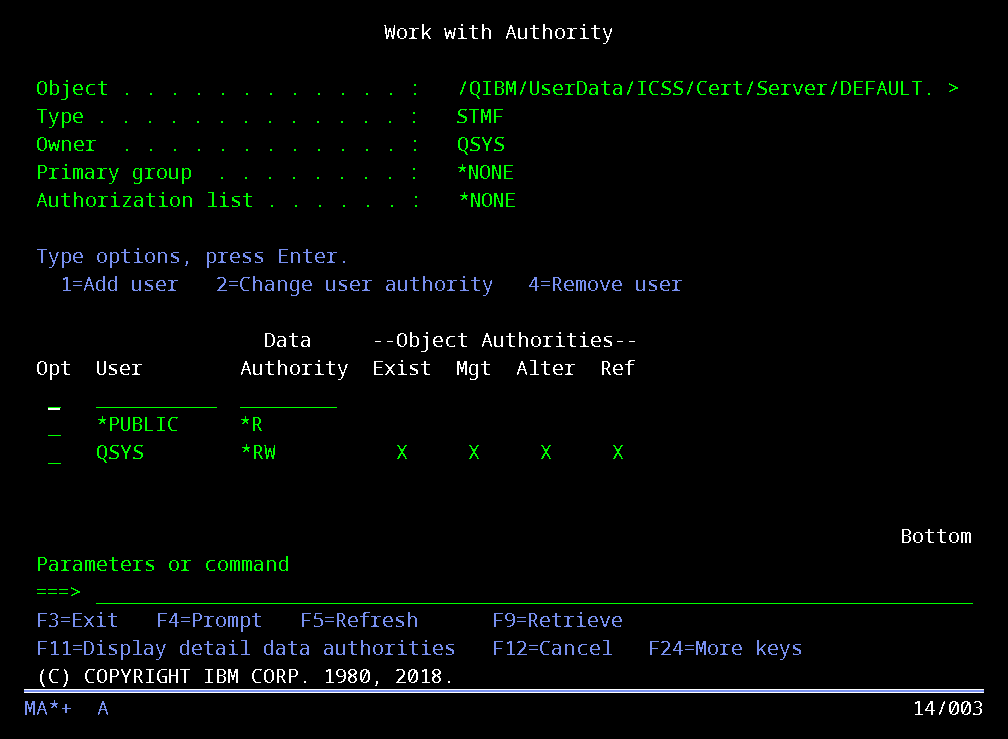
Take an option 9 on each of the DEFAULT.* files and give *PUBLIC a Data Authority of *R as shown in the below screen shot:
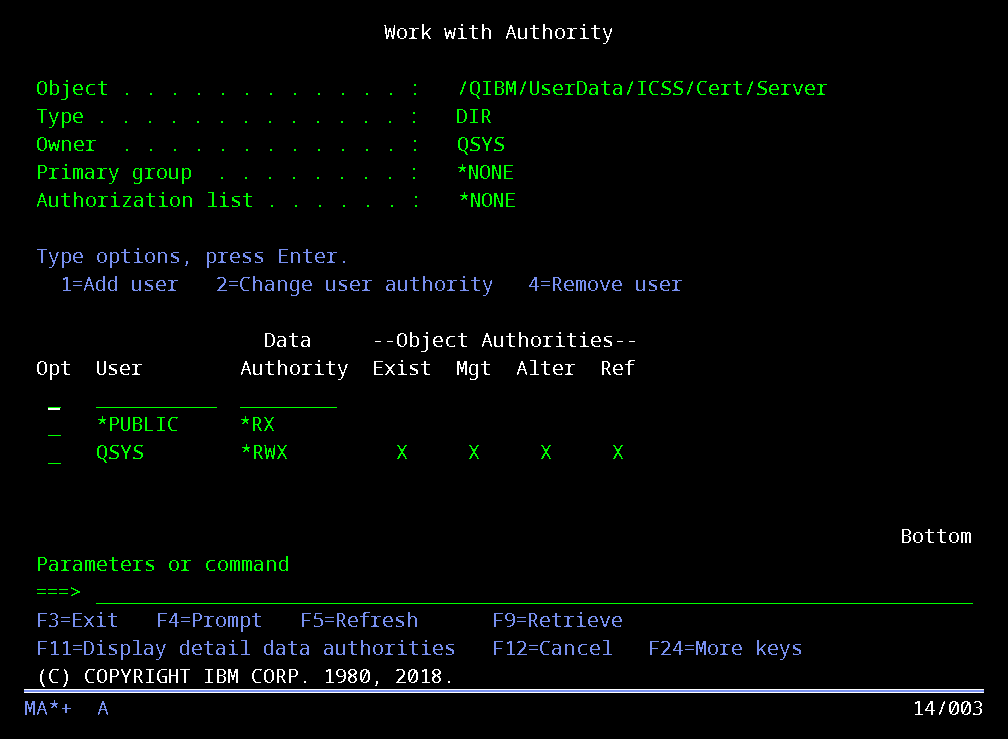
The last step is to change the Data Authority on folder /QIBM/UserData/ICSS/Cert/Server for profile *PUBLIC to be *RX. Use the following command to view the .../Server folder:
WRKLNK '/QIBM/UserData/ICSS/Cert/Server'
Next take option 9 on the .../Server folder and give *PUBLIC a Data Authority of *RX as shown in the screen shot below:
Granting authority to specific profiles
#Granting this authority to *PUBLIC is generally fine, and it is the simplest option. If your security policy calls for something narrower, you can grant the same authorities to individual user profiles or to a group profile instead. Replace *PUBLIC with the profile name in the commands above. For example, for a group profile named MYGROUP:
CHGAUT OBJ('/QIBM/UserData/ICSS/Cert/Server/DEFAULT.KDB') USER(MYGROUP) DTAAUT(*R)
CHGAUT OBJ('/QIBM/UserData/ICSS/Cert/Server/DEFAULT.RDB') USER(MYGROUP) DTAAUT(*R)
CHGAUT OBJ('/QIBM/UserData/ICSS/Cert/Server')             USER(MYGROUP) DTAAUT(*RX)
If you use the WRKLNK screens instead, add the profile on the option 9 screen and give it the same Data Authority shown above for *PUBLIC.
A group profile is usually easier to maintain than individual user profiles: grant the authority once, then make each user that needs it a member of the group. Whichever profiles you choose, they must include the profile the job actually runs under, which for batch jobs or web server jobs may not be the user who signed on.
Testing the change
#Now go back and re-run the program under the profile that was having permission issues to ensure it is running correctly.