

Changing the *SYSTEM Store Password
The *SYSTEM certificate store in Digital Certificate Manager (DCM) has its own password, separate from your IBM i user profile. There are two ways to change it: resetting it when you don't know the current password, or changing it directly when you do.
Accessing DCM
#To begin, verify that the *ADMIN HTTP server job is running with the following command:
WRKSBSJOB SBS(QHTTPSVR)
If you don't see *ADMIN in the list, please run the following command to start it:
STRTCPSVR SERVER(*HTTP) HTTPSVR(*ADMIN)
After you've ensured that the *ADMIN server is running, open a web browser, and go to http://YourIBMIPAddress:2006/dcm/ - you should see a login page as seen below:
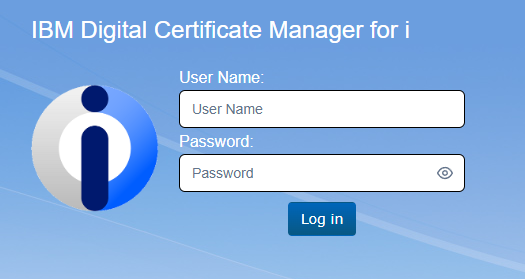
You will want to log in to DCM using a profile with elevated permissions.
Open the *SYSTEM certificate store by first clicking on the "Open Certificate Store" link under the Actions header, then select *SYSTEM:
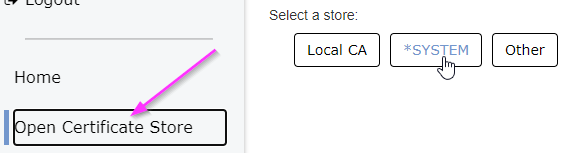
Enter your *SYSTEM store password when prompted and click "open".
If you don't know the current *SYSTEM store password, continue with Resetting the Password below. If you do, skip ahead to Changing the Password.
Resetting the Password
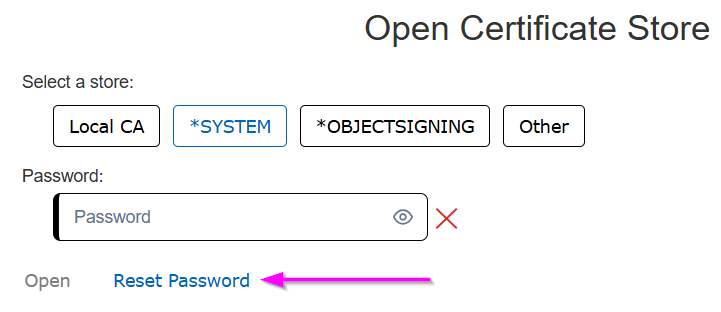
#If you don't know the current *SYSTEM store password, you don't need to open the store to reset it. On the store password prompt, click "Reset Password" instead of entering a password:
Resetting only works if the store's password is currently in sync with its password stash - a system-managed file that lets IBM i services access the store without prompting for a password. If it is in sync, you'll be prompted for a new password:
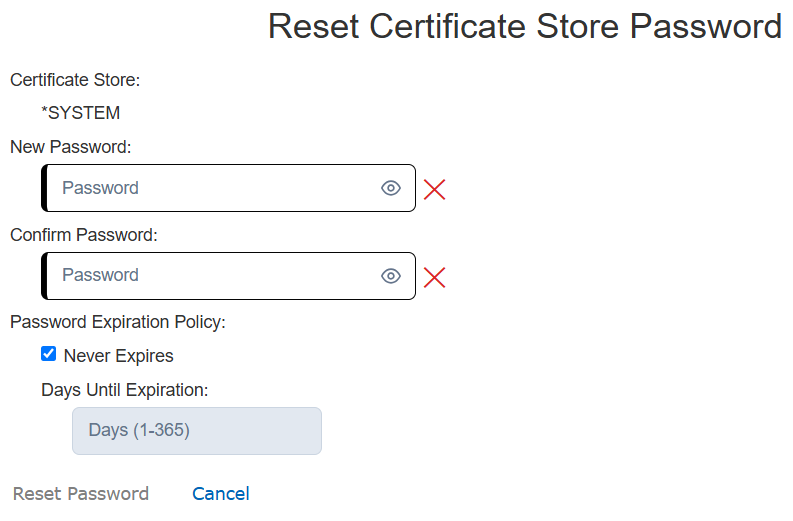
Enter and confirm a new password, then click "Reset Password". You can optionally set a password expiration policy here as well.
If the store password and stash are out of sync, Reset Password will not work either, and you have no way to access the store. In that case, your only options are:
- Delete the *SYSTEM store and rebuild it from scratch, or
- Restore it from a system backup taken while you still knew the correct password.
Changing the Password
#Once you've opened the *SYSTEM store with the current password, you'll see an action row with options including "Change Password":

Click it and complete the password change form.
Note: If you're only testing that this process works, you can click "Change Password" again immediately afterward to set it back to the original value.
*SYSTEM Store File Locations
#For backup purposes, the *SYSTEM store files live in the IFS at:
/QIBM/UserData/ICSS/Cert/Server/
The Local CA store files live at:
/QIBM/UserData/ICSS/Cert/CertAuth/ and /QIBM/UserData/ICSS/Cert/Download/CertAuth/
Backing up these directories alone is not enough - the password stash must be saved as well (via SAVSYS or SAVSECDTA) or the certificates in a restored store may become inaccessible. See IBM's How to Backup/Migrate/Replicate my Digital Certificate Management (DCM) Environment? for full instructions.